
Google Calendar Integration
Just Meeting Rooms integrates with Google Calendar, including Google Calendars used with YardiKube or OfficeRnD.
Integrating your Google Calendar with Just Meeting Rooms makes it easy to keep track of your bookings alongside the rest of your schedule.
This how-to guide walks you through connecting your Google Calendar to Just Meeting Rooms. You’ll learn how to access your settings, authorize Just Meeting Rooms to access your Google account, and sync your calendar so your availability and bookings stay up to date.
Step By Step Guide
Step 1. Log into your Host Account
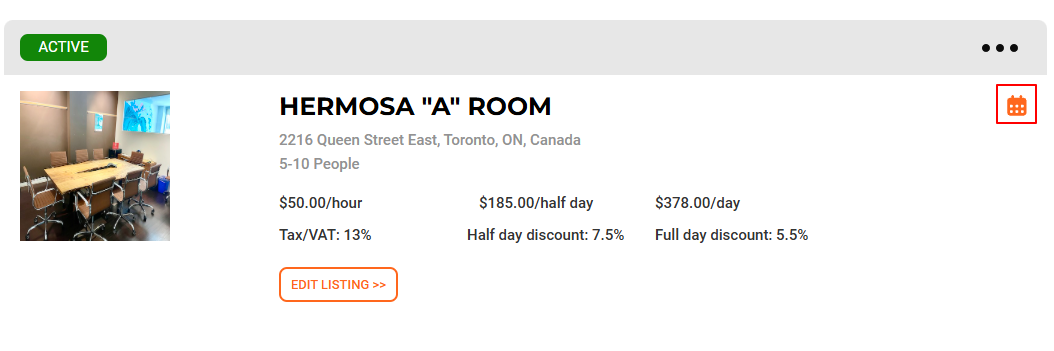
Step 2. Click the Calendar Icon
This will open your listing's calendar.
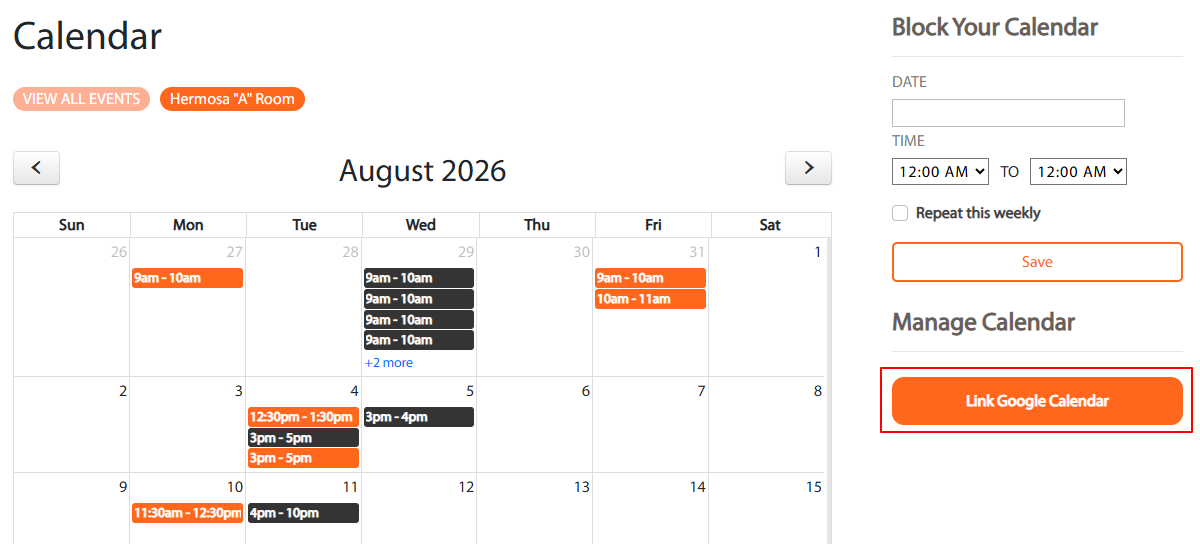
Step 3. Click on Link Google Calendar Button
This action will link your calendar with Just Meeting Rooms, allowing you to utilize calendar sync features for scheduling and managing your meetings efficiently.
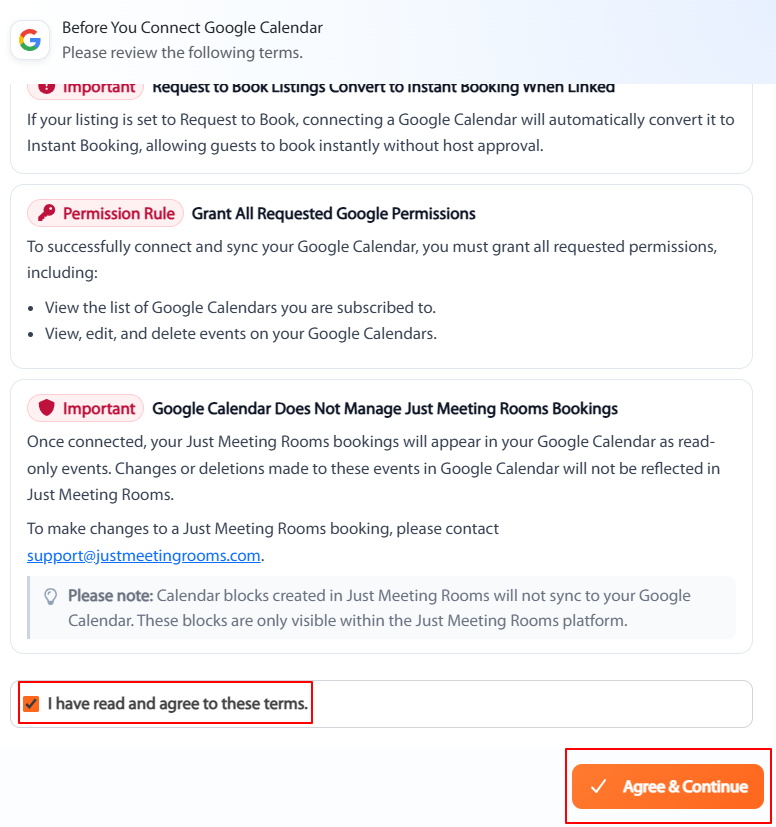
Step 4. Click "I have read and agree to these terms" and click the Agree & Continue Button
By agreeing to these terms, you confirm the calendar connection requirements before continuing the Google sign-in flow.
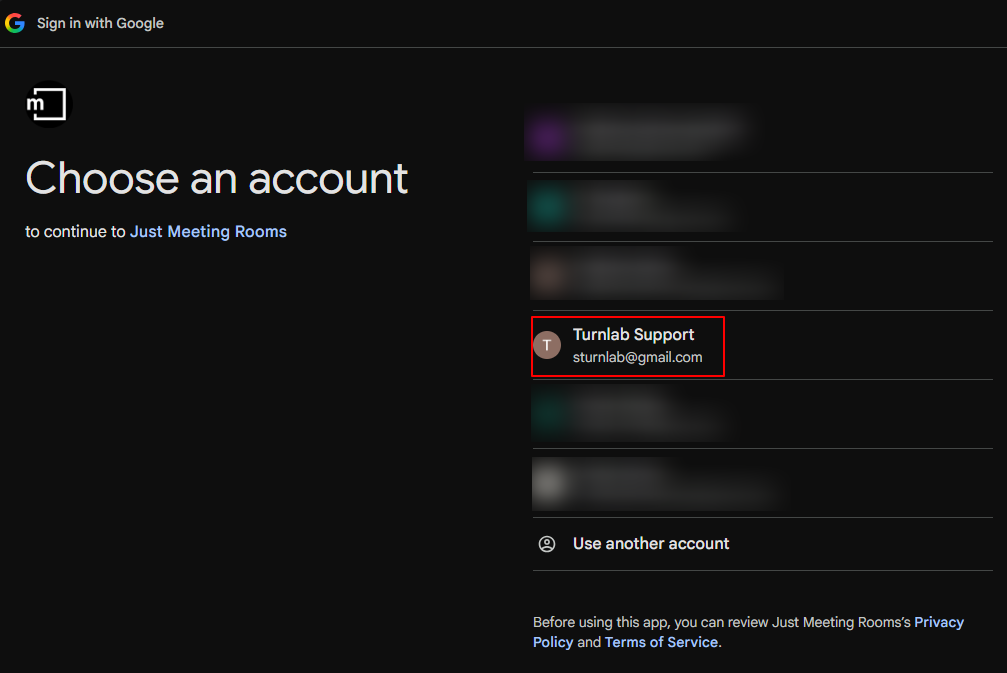
Step 5. Click the Email Address
Selecting the email address will initiate the sign-in process for your Just Meeting Rooms account using the associated Google account.
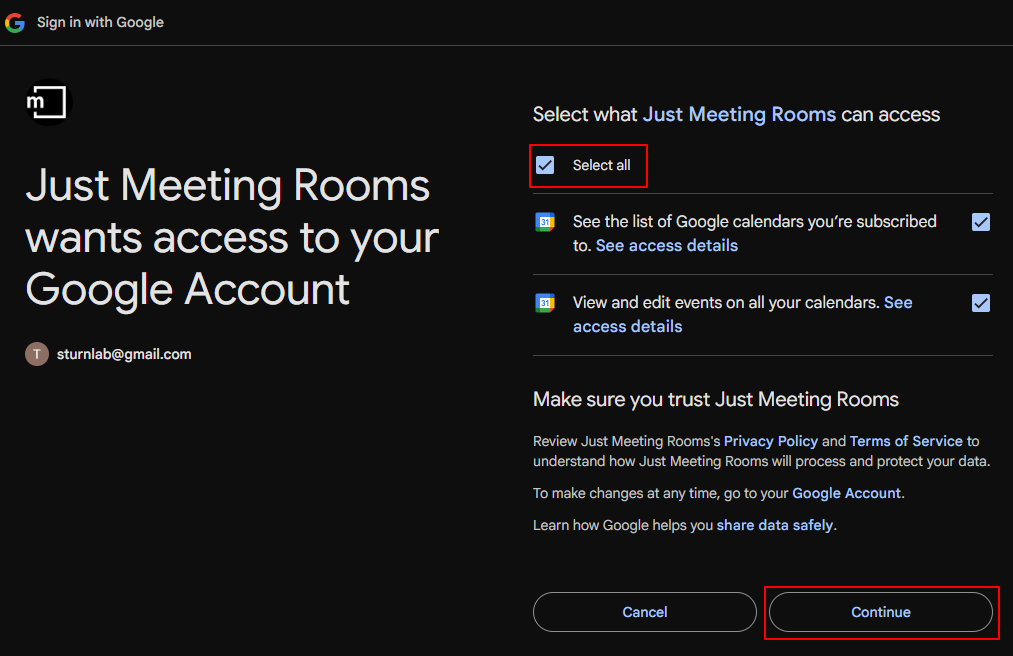
Step 6. Click "Select all" Checkbox and Click the Continue Button
By clicking the 'Select all' checkbox, you grant Just Meeting Rooms permission to view and edit events on all of your Google calendars, facilitating seamless integration between Just Meeting Rooms and your calendar management.
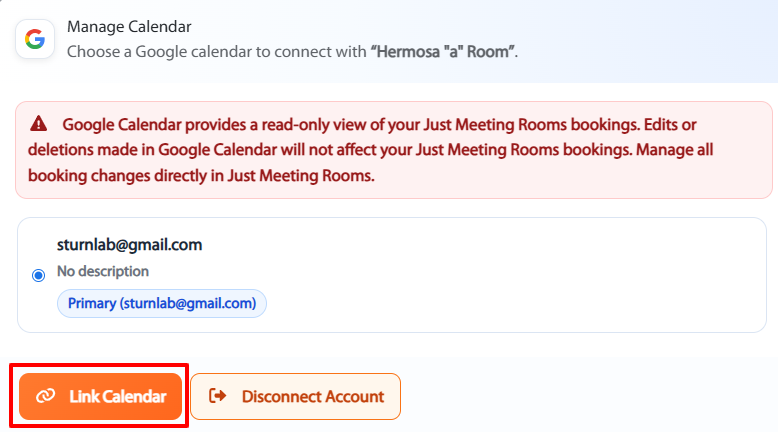
Step 7. Click on Link Calendar Button
This action will link your Google Calendar with your Just Meeting Rooms listing.
Have questions? We're here to help, please contact us at support@justmeetingrooms.com